

One of the goals of Words Deferred has always been to open up my writing process for everyone to see. I don’t claim to have the perfect process, and I think the best way to write will ultimately be different for each writer. However, there’s surprisingly little talk among writers about the day-to-day details of what writing is like, and I want to do my small part to change that.
As the end of the year approaches, I thought it would be interesting to look at the writing I’m doing and the tools I’m using in 2022. Then I can look back on this next year and see how things have changed, or if they’ve stayed the same.
Ideation
Writers are known for carrying little notebooks and jotting down ideas whenever and wherever they appear. In the past, I’ve carried pocket-sized notebooks, but I went entirely digital several years ago.
My digital notebook of choice is Microsoft OneNote. I have separate tabs for general brainstorms and ideas, short stories, novels, blog posts, lists of books I might eventually read, and more. When I need to take notes on the go, I just jot them down on my phone. OneNote synchronizes automatically between phone and laptop, with only occasional weird formatting issues.

Novel Writing
For novels, when I’m ready to go beyond the idea-gathering stage, I move all my notes from OneNote into Scrivener.
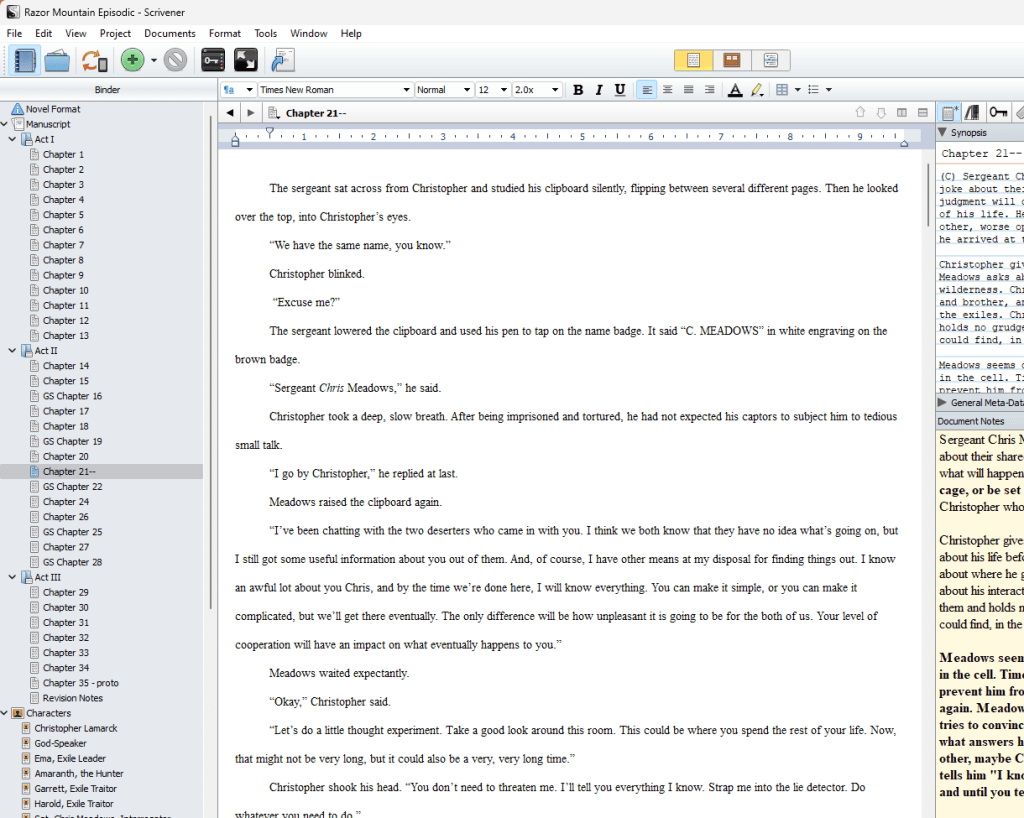
As far as I am concerned, Scrivener is the best novel-writing application out there. Where it really shines is in the way it lets me split a big project into nested parts. I split Razor Mountain into folders for each act, then split out each chapter into its own document under those folders. I have separate sections for major characters, locations and other research notes.
With a click of a button, I can look at the chapter summaries on a cork-board view, and I can drag-and-drop chapters in the document tree to rearrange them, something that has been really convenient as I’ve merged and moved chapters in Act II. Scrivener also has built-in support for “snapshots,” which I use to save each revision of each chapter. I typically save at least a rough draft, a second draft after some editing, and a third draft once I’ve gotten reader feedback.
To ensure that my work is fully backed up, I save my Scrivener files to Dropbox, which copies them across my computers and my phone for safe-keeping. I do have the mobile version of Scrivener, but I almost never use it. I love taking notes on my phone, but I do not enjoy long-form writing on that tiny keyboard.

Serial Publishing
I’m publishing Razor Mountain as a serial in three places: here on the blog, on Wattpad, and on Tapas. I chose to do this so that I could get a feel for the different platforms, and to try to increase the visibility. However, I haven’t done much to promote the Tapas or Wattpad versions, so pretty much all of my regular readership is on WordPress. I keep telling myself that I’ll eventually put some love into Tapas and Wattpad, and that may actually happen at some point. Either way, I’ll continue on all three until Razor Mountain is finished.
Because I’m posting to three platforms, my process for this is a little bit insane. It goes something like:
- Write the first draft and first round of edits in Scrivener.
- Copy it to Google Docs for easy beta reader feedback. Fix the formatting that doesn’t transfer nicely.
- Make changes based on feedback in Scrivener, and decide how to split the chapter into multiple posts.
- Copy it to a OneNote template with the brief description at the top and links to previous/home/next at the bottom.
- Copy from OneNote to WordPress. Schedule the posts.
- Copy from OneNote to Wattpad. Fix all the formatting that doesn’t transfer nicely. (Wattpad has no way to schedule posts.)
- Copy from OneNote to Tapas. Fix the formatting that doesn’t transfer nicely. Schedule the posts.
- On the scheduled day, chapter parts automatically post to WordPress and Tapas.
- I have to manually post the saved draft to Wattpad. I also have to update the previous/next links in the WordPress post, and I need to add links to the Razor Mountain home page. Depending on how busy I am, I sometimes forget to do these things, and I typically don’t catch it until I start posting the next chapter.
Some of this complexity comes from posting in three places, each with their own idiosyncrasies. It’s obnoxious how often copy/pasting between tools and websites causes the formatting to be lost. It’s doubly obnoxious that Wattpad doesn’t let me schedule posts.
I suspect there is probably a way to add WordPress links (previous/next and home page) that point to a scheduled post and only work once the post is “live.” I haven’t spent the time to figure it out though.
Short Stories
The majority of my writing time this year went toward Razor Mountain and the blog, but I have managed to sneak in a few short stories.
For microfiction, drabbles, and flash fiction, I often just work in OneNote. Unlike novel writing, I sometimes do work on short short stories on my phone, and I typically do not need organizing features or formatting more complex than italics and bold.
For longer stories, I usually use Microsoft Word on the laptop. Oddly, I copy to Google Docs for easy beta reader feedback, but I never really write in it. I’ve been using Word for years and I’m comfortable with it.
For all of my stories, I save everything to Dropbox to make sure it’s backed up. When it comes time to find places to submit stories, I use Duotrope.
Blogging
My blogging schedule has fluctuated over time, but these days I try to post Razor Mountain chapters every other week.
Unless a chapter is around a thousand words or less, I will break it into 2-3 parts of about a thousand words each. I’ve read that 500-1000 words is the sweet spot for keeping readers’ attention for blogs, and a slim majority of my WordPress readers are on mobile, where a post of that size feels bigger on the page than it does on a full-size monitor or tablet. Tapas and Wattpad don’t have that kind of detailed dashboard for writers, but they do say that most of their readers are also on mobile.
Along with the chapters themselves, I write a development journal for each Razor Mountain chapter. Sometimes I post the chapter parts earlier in a week (e.g. Wednesday and Thursday), and the development journal on Friday. If I have three parts in a chapter or get a little behind, I will sometimes post the development journal the following Monday. I used to worry about maintaining an exact schedule, but nowadays I just aim for a schedule and adjust as needed.
I write blog posts unrelated to Razor Mountain on the “off” weeks, and sometimes for the Monday of Razor Mountain weeks as well. I’ve been blogging long enough now that I have a few ongoing series of posts, so I will often mix one of those posts with something stand-alone in a given week.
I’ve gotten in the habit of posting reblogs every other Wednesday. Writing three blog posts in a week is too much for me, and reblogs are low-effort (while hopefully still interesting content). They occasionally result in some cross-pollination with the other blog’s readership. Their main purpose is to serve as a good motivation for me to regularly read other writing blogs. I maintain a list of interesting articles and blog posts in my OneNote, and trawl through them for these reblogs.
For the header images on my posts, I use Pexels. I don’t usually do any picture editing apart from cropping. If I have a really difficult time finding an image that I’m happy with, I will occasionally check Unsplash. Both of these sites offer pictures that are free to use and do not require specific license language to be displayed.
(If you’re blogging, please do yourself a favor and always check the licensing and make sure you’re attributing correctly. There are trolls out there who will sue you for hundreds of dollars, even for such non-crimes as using the incorrect version of Creative Commons. And if the image isn’t licensed for your use, don’t use it!)
I make it easy on myself and always use the same cover image for Razor Mountain chapters, and pictures of mountains for development journals. For all other posts, I just search for terms vaguely related to the content.
I always write my blog posts in OneNote, do an editing pass, and then copy/paste them into WordPress. I almost never publish a post immediately. Instead, I schedule them for 7:00am CST on a subsequent day—usually Monday, Wednesday or Friday.
Tracking
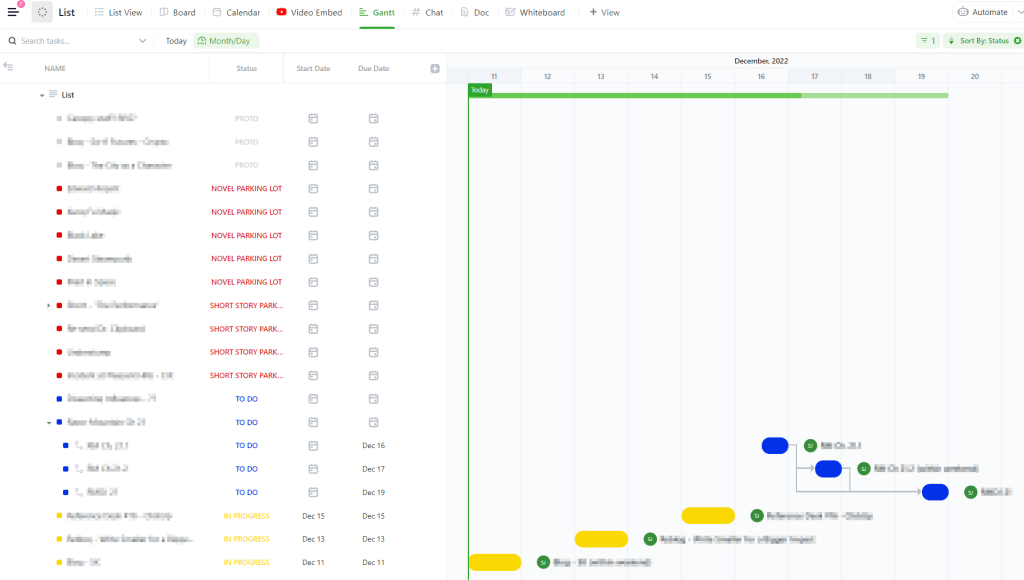
My latest endeavor is to try to get a better understanding of how I’m using my writing time. Lately, I’ve been using ClickUp. I like it for charting “deadlines,” even if they’re entirely self-imposed, and laying out a schedule of things I intend to write.
And even though I’ve explicitly said in the past that I don’t want to end up tracking things in Microsoft Excel, I’ve been doing a little bit of tracking in Excel. I haven’t found a great way to roll up the time spent on different projects in ClickUp in a way I like. Excel makes it dead simple to make a few columns and track days, projects and half-hour increments. It’s all compact and easy to eyeball, and there’s always an easily searched website that will tell you how to translate a few columns into an interesting graph, even if Excel formulas make me feel a little dirty.
This tracking stuff is still in flux, and I expect it to change. In every other respect I am an old man, set in my ways. It’ll be interesting to check back in next year, and see if anything is different.
This post is already much longer than I planned, so I’ll end it here. Hopefully it was interesting to see how another writer works. If you’re an author who writes about your own process, I’d love to read about how you’re working. Leave a comment or a link to a post of your own.

 Words Deferred